Install your Business Assistant
Add the assistant to your website, then test it
1. Choose your display style
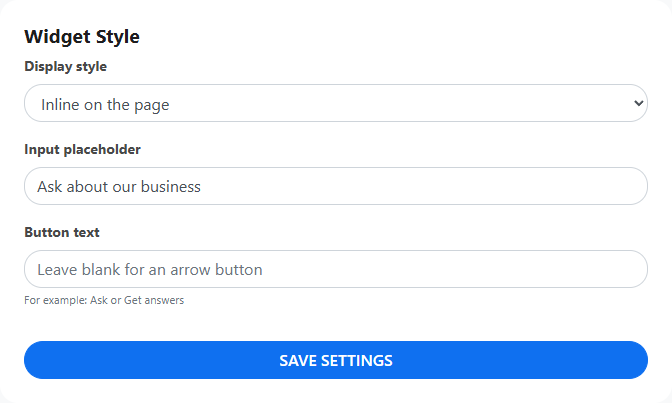
In Widget Style, choose a Display style. Click Save settings.
Floating button
A button appears in a bottom corner. Visitors click it to chat. Choose its Button text and Position in setup.

Inline on the page
A question box appears where you paste the code. Visitors type a question to open chat. Closing chat brings back the box.
In the platform guide below, choose On a specific page. Adding the code to a shared footer puts the box at the bottom.
The question box is in the wrong place
Ask the person who edits your website to add this where you want the box:
<div id="sml-business-assistant"></div>In your installation code, add data-parent="sml-business-assistant" to the opening <script> tag. Keep both on the same page and leave the rest of the code unchanged. Save Inline on the page in setup.
Full-screen chat
Chat fills the screen. Visitors use its close button to return to your website.
Visitors click the button in a bottom corner to open chat.
Visitors open Full-screen chat from your own button or link. No corner button appears.
- In setup, choose Full-screen chat > Custom button or link and click Save settings.
- Install the Embed code on each page that has your button.
- Under Connect your button or link, copy the Button example or Link example. Paste it into a page code block where you want the button.
Want to use an existing button?
Ask the person who edits your website to use SmlAiChat.open(...) with the business number from your setup example. It must run after the widget script loads. A website address in the button's link field will not work. Some website builders do not allow this connection.

Inline and Full-screen chat require Platinum. On phones, all chat opens full-screen.
2. Copy your installation code
In Preview & install, find Embed code. Click Copy code.

Add the code only once per page. If you added it across your website, do not add it again on individual pages.
3. Choose your website platform
Choose the service you use to edit your website. The next guide shows where to paste the code.
4. Publish and try it
- Save or publish your website changes.
- Open your website in a new tab, outside the editor.
- Open the assistant and ask a question about your business. Check that it replies.
- Close and reopen chat. Try it on your phone too. If you installed it across your website, check a second page.
Need a quick fix?
The assistant does not appear
- Check that setup is complete and the assistant is turned on in ShowMeLocal.
- Check your platform guide for any plan requirements.
- Check that you saved the whole code and published the page. Reload your website.
If you chose Custom button or link, no corner button appears.
Still stuck? Contact ShowMeLocal support with your website address and display style.
My custom button does not open chat
The Embed code and button must be on the same page. Use the button example from your own setup. Let the page finish loading, then click. If it still fails, ask the person who edits your website to check the connection.
I see two assistants
The code may be added twice: once for the whole website and again on the page. Keep one copy, publish, and reload. If you are unsure, ask the person who edits your website.